A new version of LeaderTask Company Management 6.1 has been released!
What's new?
LeaderTask Company Management is a program for managing the activity of a group of people - both small teems and large organizations. The LeaderTask system helps the head of a company quickly get information about the current state of affairs regarding projects, tasks, employees.
LeaderTask Company Management features:
1)Multi-user tasks management system for the company's employees simultaneous use.
2)Real-time project management.
3)Task assignment: the responsible person, terms, priorities, attitude to projects, categories.
4)Monitoring all assigned tasks: what tasks are in progress, at what stage they are, their history...
5)Monitoring the workload of the company's staff.
6)Evaluating every employee's efficiency.
7)Comprehensive overview of the company's current affairs, even if you are a away for a long time.
8)Regular reports about employees' work
9)Clear overview of tasks from customers: who ordered (assigned), terms, priority, task details.
10)Effective team cooperation: quick message, file, note, document exchange...
11)Clear information access right distribution. Employees have access only to those tasks that were delegated to them, only the owner has access to the entire database.
12)Communication history: employees, partners, customers, suppliers...
13)Complete history for tasks, projects, messages, employees.
14)Managing documents sorted by clients, projects, time, priority.
15)Replacing paper reports from managers
Download:
http://www.leadertask.com/download/ltcompany.zip
WWW:
http://www.leadercommand.com/
Monday, December 15, 2008

Tuesday, November 25, 2008
LeaderTask 6 - convenient alternative to Outlook!
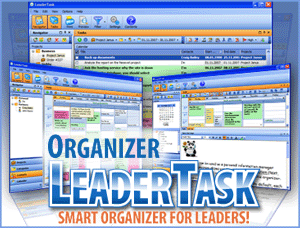
LeaderTask 6 - convenient alternative to Outlook!
The Almeza company announces the release of the new version of the business
organizer LeaderTask 6. The LeaderTask organizer allows you to
manage your business schedule and notifies you about important events you can set priority
and importance for.
LeaderTask 6 is an organizer with a smart management system. It combines
such important time management features as a contact manager, a
project manager, a
personal information manager, a calendar, an address book, an organizer.
The LeaderTask organizer is designed for a modern businessperson who values
time and wants to plan it effectively. The organizer perfectly complements
the well-known Microsoft Outlook product and it is a good replacement for
outdated desktop "notes". The compatibility with David Allen's
Getting Things Done system allows you to achieve still better flexibility in
time management, planning and decision-making.
"The LeaderTask business organizer is a perfect tool for people who are
looking for a time management solution. It combines such features as:
projects, tasks, notes, documents, tables, diagrams, presentations, files and
also private information (logins, passwords, PIN codes...)
Besides, LeaderTask is perfectly compatible with MS Outlook!"
Ivan Abramovsky, the director general of the Almeza company, comments.
You should try the new organizer at least because not only does it store a
set of data, but it also helps you do everything in time and not forget about
important things. For instance, you can assign not only the time when to do
something, but also the place where to do it. Thus, once you are in a bank,
you will immediately see the tasks you have to do in a bank. And you will not
forget to buy a present for your kid and flowers for your wife - if you enter
this information into the Home section beforehand.
The new version of the program has such features as: complete export/import
compatible with MS Outlook, import from the GoogleCalendar (iCal) format,
work with several files, improved notes and links, a lot of minor
improvements and fixes.
About the Almeza company
The company has been developing software since 2005. Besides LeaderTask,
the company develops Almeza MultiSet that is used to create automatic
installation for the Windows operating system and other software.
You can learn more about the product on the website:
Website: Business Organizer
Download Organizer:
http://www.leadertask.com/download/leader.exe
Tuesday, November 18, 2008
The best thing to do when you have planning problems

Are you sick of missing your appointments, have unfinished business
and tasks left at the very last moment of your day? Well believe me I know
what it's like, I used to struggle when it came to
planning my tasks,
appointments sometimes even birthdays!
Options
You could of course get a big fancy but most of all expensive Black Berry
or other PDA, but it costs a lot of money plus it takes some time to get to
know the device and use it with no pain. What I personally recommend is the
software LeaderTasks, let me explain why.
First of all the software is for the biggest part free, no hided, costs,
no spam, no bullshit, no nothing.
You just go to the site and download it, and if you would like to unlock more
features just buy it, it's not even that expensive! But of course you are here
for your problems on planning.
Features
Some of the most important and handy features of the software:
It has a full agenda where you can put tasks, appointments etc. in even in a
minute precise!
When you are afraid you'll forget your appointment, no worry just set the
alarm and you can be warned 5, 10 minutes heck even 5 hours before your task,
you can set the time!
You can also set and even make your own priorities, you can give them
another color, underline them etc. When you need to know an appointment
quickly you can run a filter for the thing you search, such as dentist. The
interface thereby is extreme customer friendly, no little words unclear
appointments everything nice and clear. The tasks for your day can be viewed
on a vertical time line which contributes to the overview.
 vspace="5" hspace="5" alt="to do list organizer" border="0">
Alltogether you will get an overdelivered program with many, many more
features, don't hasytate to take a look at their site and let yourself be
surprised with the comfort of this amazing problem. So if you're serious about
getting your planning on to a whole new level be sure to look at here it has
definitely worked for me!
Download organizer:
http://www.LeaderTask.com/download/leader.exe
LeaderTask homepage: to do list organizer
Tuesday, November 11, 2008
Almeza MultiSet 6.3 Build 110 has been released
Almeza MultiSet 6.3 Build 110 has been released
Version 6.3 (November, 2008)
* automatic language detection
* an error with command 'amstart' was fixed
* an error with template %cdrom% was fixed
* an error with template %computername% was fixed
* the Byelorussian language has been added
Version 6.3 (November, 2008)
* automatic language detection
* an error with command 'amstart' was fixed
* an error with template %cdrom% was fixed
* an error with template %computername% was fixed
* the Byelorussian language has been added
Want to create a WindowsXP installation disk that will automatically install the OS Windows without asking questions about username, product key, time and locale settings?
At the same time your favorite applications are automatically installed, the necessary keys are entered into the registry, drivers are updated, new patches (service packs) from Microsoft are installed. It's possible and you can do it easily with Almeza MultiSet!
Almeza MultiSet will automatically install all the applications you require, either onto your original computer or onto a new one. It's an ideal solution for rebuilding your systems quickly!
Monday, November 3, 2008
LeaderTask business organizer 6.0

A new version of LeaderTask 6.0 has been released!
What's new?
+ Full export / import of MS Outlook
+ Import from GoogleCalendar iCal format
+ Working with multiple data files:
(new / open / save)
+ Added option selecting the font in the taskbar
+ Improved notes and links
+ Realized a lot of small improvements and bug fixes
Download todo list:
http://www.leadertask.com/download/leader.exe
Thursday, October 16, 2008
ToDo List LeaderTask version 5.83
A new version of organizer LeaderTask 5.83 has been released!
What's new?
- Improved work with notes
- Improved links
- Added setup notes
- Fixed shortcomings in the properties of task
Download todo list
What's new?
- Improved work with notes
- Improved links
- Added setup notes
- Fixed shortcomings in the properties of task
Download todo list
Tuesday, October 14, 2008
Advanced Windows Unattended Installer
The age of manual Windows installation is over. Reinstalling Windows without any data loss. Want to create a WindowsXP installation disk that will automatically install the system without asking questions about username, product key, time and locale settings? At the same time your favorite applications are automatically installed, the necessary keys are entered into the registry, drivers are updated, new patches are installed.

Tuesday, September 23, 2008
Almeza MultiSet 6.2 Build 795 has been released
Almeza MultiSet features:
 1) Automatic Windows installation. It is possible to create a CD/DVD for the automatic installation of the Windows operating system on any computer. The operating system can be installed in any mode: repairing Windows (installing above the current version of the operating system) or reinstalling it completely.
 2) Automatic installation of any software. It is possible to create a CD/DVD that will automatically install any sets of software on multiple computers. For example, after Windows is installed, it is possible to install service packs, drivers, localizations, any software (codecs, audio players, service tools...) and configure them automatically as well.
 3) Creating a bootable disk for simultaneous unattended Windows and software installation. It is possible to create a disk that will install both Windows and a set of software.
 4) Automatically restoring software settings and tuning Windows. It is possible to automatically restore software and Windows settings. It is possible to restore registry keys, run special tools.
 5) Remote automatic installation. It is possible to automatically install sets of software via the local area network. The necessary software will be automatically installed on any number of computers connected to the local area network.
We should also mention the features of the program that won it users' admiration:
* Convenient Wizards. Automatic installation disks are created with the help of convenient wizards.
* Ease of use. The program does not require any special knowledge (i.e. it has no special script language, complicated settings), everything is as easy as possible.
* Processing all installation procedures correctly: restarting the computer during automatic installation, entering registration keys, entering usernames and other parameters; processing nonstandard exception situations in an adequate manner. (Extended features MultiSet )
Almeza MultiSet 6.2 Build 795 has been released
Version 6.2 (September, 2008)
* the program kernel was improved
* some bugs were fixed
* the automatic installation rate has increased
* an error with creating log file was fixed
* the Romanian language has been updated
* the Greek language has been updated
Download unattended installation software:
http://www.almeza.com/download/multiset.exe (5.5 Mb)
1) Automatic Windows installation. It is possible to create a CD/DVD for the automatic installation of the Windows operating system on any computer. The operating system can be installed in any mode: repairing Windows (installing above the current version of the operating system) or reinstalling it completely.2) Automatic installation of any software. It is possible to create a CD/DVD that will automatically install any sets of software on multiple computers. For example, after Windows is installed, it is possible to install service packs, drivers, localizations, any software (codecs, audio players, service tools...) and configure them automatically as well.3) Creating a bootable disk for simultaneous unattended Windows and software installation. It is possible to create a disk that will install both Windows and a set of software.4) Automatically restoring software settings and tuning Windows. It is possible to automatically restore software and Windows settings. It is possible to restore registry keys, run special tools.5) Remote automatic installation. It is possible to automatically install sets of software via the local area network. The necessary software will be automatically installed on any number of computers connected to the local area network.We should also mention the features of the program that won it users' admiration:
* Convenient Wizards. Automatic installation disks are created with the help of convenient wizards.
* Ease of use. The program does not require any special knowledge (i.e. it has no special script language, complicated settings), everything is as easy as possible.
* Processing all installation procedures correctly: restarting the computer during automatic installation, entering registration keys, entering usernames and other parameters; processing nonstandard exception situations in an adequate manner. (Extended features MultiSet )
Almeza MultiSet 6.2 Build 795 has been released
Version 6.2 (September, 2008)
* the program kernel was improved
* some bugs were fixed
* the automatic installation rate has increased
* an error with creating log file was fixed
* the Romanian language has been updated
* the Greek language has been updated
Download unattended installation software:
http://www.alme
Wednesday, September 17, 2008
Planning software - LeaderTask 588
For immediate release
September 12, 2008
Contact: Ivan Abramovskiy
Company: Almeza Company
Title: Manager
E-mail: Ivan.abramovsky@almeza.com
Work More Efficient and Have More Free Time Than Ever With LeaderTask

Imagine, a person with a tight schedule runs a small business or
manages a project; or he is a self-employed person and has to schedule his work time so
that there is enough free time for spending with the family and friends.
Often it’s quite difficult to plan a flexible time-table and to perform all
the duties on schedule. Deadlines looming and the work is only half way done.
It’s not a problem any more! LeaderTask 58 will solve all the problems in a
given time frame as quick as never before.
Severodvinsk, Russia, September 12, 2008 - Almeza Company today announces
the release of LeaderTask v. 58 - a new version of
a smart business organizer
for modern people that will help organize time, increase the activity
effectiveness, minimize the routine, remove strain from business, get rid of
fuss and reveal the deposits of free time. LeaderTask 58 is not only a
business organizer, but also a Personal Information Manager, Calendar, an
Address Book and a Contact Manager. «A small case that allows me to keep
all those one-time pieces of information off my mind. You work with the
program like this: you write it down and forget it. Then you see it and do
it. I liked the easy task overview, including strategic goals and tactic
plans», says Vladimir Anastasin, CEO, FastSoft – company’s client.
LeaderTask is a unique personal business organizer with new conceptual
management of tasks, projects, time and persons activity. The software will
replace scattered paper notes, colored stickers on the PC screen and other
out-of-date time management methods. Now all the plans and tasks will be
stored in a safe place. By just hitting Ctrl+Alt+A it is possible to add new
tasks or to view the current ones. The software is constantly at hand and on
the lookout in the windows tray icons. All the LeaderTask features have their
special tags that help to filter the needed tasks. Thus, by just one mouse
click the user can quickly open: «Me Today», «IMPORTANT», «URGENT»,
«Monthly Sales», «Project XYZ In October», «Delegated Tasks Monitoring»,
«Bank», «To Buy», «To Read», «Year Goals» and more. Besides, it’s possible to
adjust LeaderTask the way most convenient for the user. LeaderTask also allows
applying the David Allen’s GTD (Getting Things Done) methodology.
What’s more, any task in LeaderTask can be applied to any context most
convenient for the user. The context can be in form of a place (home, office,
bank etc.), a contact (boss, employee, wife/husband), or a category of a
project. To put it simple, any task can be applied to its context – in the
most convenient circumstances for its performing. If the task should be
performed in the bank, it’s better to fill it into the «Bank», if a task is
extremely important it should be assigned with a correspondent priority and so on.
LeaderTask is: an aid for the PC memory, as it’s difficult to keep large
amount of information in mind; a visual overview and full control of the user
activities; always at hand, as it’s easy to access the organizer with the help
of hot-keys; a storage of absolutely any information (documents, diagrams,
images); a customize interface (customize the position the main toolbars,
format the task tree, color task categories, specify options and more); a
ready solution (new skills teaching, new implementation in the form of
educational training course); a software with an individual approach.
LeaderTask is like a personal manager or secretary for a user.
Other features include displaying tasks in a form of a tree, and a
calendar; filtering tasks, reminders, comfortable navigation, personal
information manager, user interface and flexible settings, password manager,
file container, link manager, data backup and more.
LeaderTask is used to automatically keep record of all operations – those
of the PC user, his family or company. LeaderTask will automatically generate
a schedule for the user, taking into account all the projects and tasks. The
program will considerably increase the level of the user business and
personal
time organization. Now all the thoughts and plans will be in a stable system.
LeaderTask has a portable-version, thus the user will have the software
always at hand wherever he is. Portable-version can be written on a flash
card, it requires no installation, therefore all the data is stored and
saved in its folder.
By purchasing the software, the user gets a license key that
automatically makes him a participant of marketing stocks with a chance to
win a prize. By the use of the main license, the user can form additional
license that will help his relatives purchase the product license on a lower
price. LeaderTask helps organizing things more efficiently without wasting
the person’s time!
Pricing and Availability
LeaderTask v. 58 is compatible with Microsoft Windows 2000/XP/Vista,
Intel Pentium II and higher, with 64 MB RAM and 15 MB on the hard disc,
mouse or touchpad required.
Calendar planner organizer: http://www.leadertask.com
Download organizer: http://www.leadertask.com/download/leader.exe
About Almeza Company
Founded in 2005, Almeza Company is a quickly developing software company
producing quality software for Windows. All products of Almeza Company are
available in more than 80 languages. The company's employees are experts in
system programming, interface design and PC workflow automation. The company's
key to success is a close communication with its customers.
###
NOTE TO EDITORS:
Postal address: Russia, Severodvinsk, Post office box 59, 164522
E-mail: Ivan.abramovsky@almeza.com
Thursday, September 4, 2008
Time planning
How more efficient have I become?
More efficient, much more
Now I have time for self-development
Now I have time that I have lacked for the last 4 years. Now I can read books not only on economics, but just books, classic books. Now I have time to go in for sport. No more rush in my life, now I feel confident and safe. I'm no longer afraid to forget anything. So many changes have come for this month and a half.
Many things that seemed to be delayed forever are now in progress
I think that anyone has such things in life that are left in a closet for some future because there is never time to spend on them. I used to have this kind of closet. But on some nice day I realized that it was the day when I could afford it. I can afford to spend my time on it without being afraid that it will negatively affect my business. How do I feel about it? It is like a long-awaited meeting with an old friend.
Acknowledgements
Developers
Thank YOU A LOT for this product. For its fast development. For a completely unique forum with its unique atmosphere.
Thank you also for this [Contest] What did LeaderTask give me?
I give you my word, before I got down to writing it (because of the licenses so generously offered Smiley and it's not that I don't have money, but I consider this offer as an opportunity to earn software by spending a bit of time), I had not realized how much changed in my life, how I changed after LT appeared in my life and people it attracted. As to forum, honestly I have never come across such friendly and efficient communication. By the way, writing this material has already taken two days Smiley . So may ideas come to my mind. Understanding and surprise about how a simple software program created with LOVE can change the life of those who gets to work with it and I have no doubts that the developers love their creation.
Thank you for provoking me into writing this material with your generosity.
GOD BLESS YOUR LIFE.
Download organizer
Time planning
More efficient, much more
Now I have time for self-development
Now I have time that I have lacked for the last 4 years. Now I can read books not only on economics, but just books, classic books. Now I have time to go in for sport. No more rush in my life, now I feel confident and safe. I'm no longer afraid to forget anything. So many changes have come for this month and a half.
Many things that seemed to be delayed forever are now in progress
I think that anyone has such things in life that are left in a closet for some future because there is never time to spend on them. I used to have this kind of closet. But on some nice day I realized that it was the day when I could afford it. I can afford to spend my time on it without being afraid that it will negatively affect my business. How do I feel about it? It is like a long-awaited meeting with an old friend.
Acknowledgements
Developers
Thank YOU A LOT for this product. For its fast development. For a completely unique forum with its unique atmosphere.
Thank you also for this [Contest] What did LeaderTask give me?
I give you my word, before I got down to writing it (because of the licenses so generously offered Smiley and it's not that I don't have money, but I consider this offer as an opportunity to earn software by spending a bit of time), I had not realized how much changed in my life, how I changed after LT appeared in my life and people it attracted. As to forum, honestly I have never come across such friendly and efficient communication. By the way, writing this material has already taken two days Smiley . So may ideas come to my mind. Understanding and surprise about how a simple software program created with LOVE can change the life of those who gets to work with it and I have no doubts that the developers love their creation.
Thank you for provoking me into writing this material with your generosity.
GOD BLESS YOUR LIFE.
Download organizer
Time planning
Wednesday, September 3, 2008
Goal Management Software
Advertising
Advertising a company is a complicated and long process. It already starts when you just decide to create this or that structure. Choosing a name is the starting point. Quite a lot might be said about the name and how it affects business, but we are here for a different thing. It is enough just to understand that advertising starts at the very moment when the business emerges. Then the main advertising formula comes in: AIDA. Those who are in the advertising industry know what I'm saying Smiley and I recommend that the rest of you who are interested search for more information because I will not explain it better than professionals while the understanding of this formula may dramatically change your view on advertising. Advertising is a complex and multipronged project and this project is quite dynamic. If you delay anything in its implementation, it seriously affects the sales statistics (that is, profit). Organizing and planning an advertising campaign for a company is an eternal and constantly changing project, being one of the most key ones as well. The way LT is used in advertising is not basically different from the way it is used in implementing the development program.
Sales
Using LT for sales purposes is a bit different from the above. In this case it comes down mainly to monitoring the supply deadlines and the terms of agreements in order to extend or re-sign them in time. Kind of a advanced reminder, BUT do not forget that after I left this issue to LT, I freed my mind and time for something else and at the same time I do not lose clients and keep up with shipment deadlines. Besides, I have an idea to link sales to production, i.e. plan production and supplies for it according to processed orders, but this scheme is in the state of development and testing yet.
Goal Management Software
Advertising a company is a complicated and long process. It already starts when you just decide to create this or that structure. Choosing a name is the starting point. Quite a lot might be said about the name and how it affects business, but we are here for a different thing. It is enough just to understand that advertising starts at the very moment when the business emerges. Then the main advertising formula comes in: AIDA. Those who are in the advertising industry know what I'm saying Smiley and I recommend that the rest of you who are interested search for more information because I will not explain it better than professionals while the understanding of this formula may dramatically change your view on advertising. Advertising is a complex and multipronged project and this project is quite dynamic. If you delay anything in its implementation, it seriously affects the sales statistics (that is, profit). Organizing and planning an advertising campaign for a company is an eternal and constantly changing project, being one of the most key ones as well. The way LT is used in advertising is not basically different from the way it is used in implementing the development program.
Sales
Using LT for sales purposes is a bit different from the above. In this case it comes down mainly to monitoring the supply deadlines and the terms of agreements in order to extend or re-sign them in time. Kind of a advanced reminder, BUT do not forget that after I left this issue to LT, I freed my mind and time for something else and at the same time I do not lose clients and keep up with shipment deadlines. Besides, I have an idea to link sales to production, i.e. plan production and supplies for it according to processed orders, but this scheme is in the state of development and testing yet.
Goal Management Software
Tuesday, May 27, 2008
LeaderTask - Business Organizer and PIM software
Business Organizer

The program will help you organize your cooperation with all types of
contacts in a convenient form: clients, employees, customers, partners.
With LeaderTask, you will be able to:
LeaderTask will help you and your business in:
The program will help you keep record of agreements, accounts, payments,
other documents, products, services. The program will automate the work of the
sales department, planning department, financial department. Also, it is
possible to automate all kinds of other tasks as well. Due to grouping and
filtering implemented in a convenient way, you can easily see how your
employees work, monitor advertising campaigns, control task completion,
check payments.
The program will help you organize your cooperation with all types of
contacts in a convenient form: clients, employees, customers, partners.
With LeaderTask, you will be able to:
- Distribute tasks between employees
- Control the completion of tasks
- View the current workload of employees
- Have the complete idea of what is going on even when you are away
- Organize a workplace outside your office
- Monitor the entire history of tasks
- Collect information about task solutions in order to present them as ready-made solutions.
LeaderTask will help you and your business in:
- Planning processes in the company.
- Managing the personnel. Assigning tasks, monitoring their completion.
- Controlling remote employees.
- Monitoring employees' office hours.
- Controlling communication with clients.
- Cooperation with partners.
The program will help you keep record of agreements, accounts, payments,
other documents, products, services. The program will automate the work of the
sales department, planning department, financial department. Also, it is
possible to automate all kinds of other tasks as well. Due to grouping and
filtering implemented in a convenient way, you can easily see how your
employees work, monitor advertising campaigns, control task completion,
check payments.
LeaderTask offers absolutely everything a modern businessman may need:
reminders about important meetings, a scheduler, an address book and also a
secure storage for confidential information.
Philosophy of successful time management
Organizing the time of a modern businessperson
5 reasons why the head of an organization needs the LeaderTask organizer.
Manage the reality - modern time management tools
Using the Getting Things Done methodology in the LeaderTask organizer
Monday, May 5, 2008
Friday, March 14, 2008
Alternative to Outlook
LeaderTask - Alternative to Outlook!
Sergey Novikov

I once asked a friend of mine what is
the best organizer?
He said, "Microsoft Outlook, of course". Then he thought a bit and
added, "The most popular one, anyway." But popularity is not the key
issue for me. And since I have to write down (or keep in mind) a lot in my
work, I decided to take it more seriously. I have studied a lot organizers
and schedulers.
LeaderTask from the Almeza company has turned out to be the most appropriate
and convenient one for me. I will not compare it with all organizers, but only
with the most popular one – Microsoft Outlook. No doubt Microsoft
Outlook is a high-quality software product, but LeaderTask outdoes it in some
things. Though Outlook is better in some other things. I will enumerate all
these parameters in this article. So...
LeaderTask advantages.
1. Separate object groups.
There are different types of objects defined in LeaderTask. These include:
projects, tasks,
notes.
Projects in LeaderTask mean those things that have time limits. Something
specific results from a project being completed.
A task in LeaderTask is the description of what should be done in order to
complete a project (project steps).
Notes are chaotic records that can be assigned to projects and separate
tasks (they may also deal with a contact/category/time, etc.). Notes serve
as a convenient tool for taking down separate thoughts that can be useful for
completing a project or a task.
A project may contain several tasks. For example, the "Writing an
article" project may include the following: "Studying
materials", "Writing a draft", "Sending it to the
editor", "Correcting the article". The result of the project
is an article.
That is, something large is split into smaller parts, which is very
convenient to use.
Besides, every project has the following properties: a name, a group
(logical, the one the project belongs to), a contact (the list of project
participants), a time period (the time the project will be completed within),
notes (comments to the project). You can filter tasks by these properties
(single out tasks from the list of tasks). I will dwell on filtering a bit later.
Each task can contain subtasks. For example, the "Studying
materials" task may include the following subtasks: "Visit
the library", "View information on the website", "View
advertising materials". Any task has parameters (tags) that can be also
used for filtering. These include: "Projects", "Contacts",
"Categories",
"Calendar".
Outlook has nothing like this - no different types of objects are defined
in it. There are no separate projects, tasks, notes – there are only
equal tasks. It means that notes (occasional thoughts) will be in one list,
which will make searching for a particular note afterwards more difficult.
It is completely unacceptable for a person who values time.
2. Tree-like tasks.
Tasks in LeaderTask are arranged in the form of a tree, which is achieved
due to the
task hierarchy
(splitting tasks into subtasks). It allows you to classify tasks, combine
them into one project (or into a task of a higher level). This way you get
tasks that are not scatterred, but strictly structured. The tree-like
structure allows you to see the heirarchy and understand what tasks belong to
what at any time. It reminds the tree of folders and files in the operating
system. It is much more convenient to keep tasks this way (since you are quite
used to it). Besides, these hierarchies can have as much levels as you need.
The tree-like structure allows you to:
- See all tasks at once;
- Sort tasks. You can sort tasks by any property (important/unimportant,
personal/business, etc.); - Group tasks. You can group tasks by criteria (either by one or by several
criteria at once). Criteria include: project, time, category, contact; - Use the "Periodic Task" option allowing you to complete tasks
that may occur at certain intervals; - Customize the settings. It is possible to customize the task tree the way
that suits you best; - Hide completed tasks. You can show (or hide) completed tasks at any time.
Which is also very convenient and allows you not to pay attention to tasks
that are already completed.
Tasks are not arranged as a tree in Outlook. It has one level only. All
tasks are arranged in one list, there is no embedment, which makes it
sometimes difficult to make out what a particular tasks belongs to. It is as
if all files on the computer were located in one huge folder. It is very
inconvenient.
3. Flexible interface customization.
It is possible to flexibly customize interface in LeaderTask (as in many
modern programs). Any user can customize tasks to be displayed in the way he
finds convenient. The following items can be used to achieve it.
- Floating panels. All panels in LeaderTask are floating – they can
be dragged to any part of the main window. The user can set the panel size,
set its position and type, specify how many panels should be displayed at a
time. Besides, every panel has thee buttons in the right corner of its title
bar. They allow you to maximize the panel (inside the main window of the
program), activate popup mode for the panel (the panel will slide out when
you move the mouse pointer over it), close the panel. - Highlighting. Every user can highlight task tabs in a particular color
in order to see better in the task tree. Highligting is a perfect tool for
marking the most important tasks, urgent tasks or tasks you must not postpone
or forget about. An important task that is not highlighted may get lost among
other tasks. LeaderTask allows you to avoid it. It seems as if nothing
special, but highlighting in different colors is a very useful tool
for planning your tasks right. - Skins. LeaderTask supports all kinds of skins, among which any user
will be able to choose the one that suits him best. - Fonts. LeaderTask supports all kinds of fonts. You can use it to
highlight various tasks in the list as well.
It is possible to partially customize the interface in Outlook (but it is
no so easy to do it). In particular, panels are static in Outlook (they are
not floating) and it is also impossible to highlight particular tasks in
different colors in Outlook.
4. Structuring tasks.
That's where LeaderTask is completely incomparable - it offers extremely
wide features for structuring tasks. First of all, it is structuring tasks
by projects and subtasks (what I mentioned above). Besides, it is possible
to structure tasks by categories, by deadlines, by priority, by contacts.
The most important thing in LeasderTask is structuring tasks by priority.
Priorities are arranged into a library of priorities that you can cusotmize so
that it meets your needs. Tasks structured by priorities allow you to single
out the most important tasks among all other tasks and complete them first.
Tasks are not structured in Outlook. All tasks are displayed in one list
where it is reall difficult to make anything out.
5. Clear view.
One of the main
advantages in LeaderTask is a clear view of tasks
(particularly on the "Today" panel). Along with the task tree and
highlighting, it is achieved by the following:
- Tabs.
Multiple tasks are grouped with the help of tabs in the "Tasks"
panel. Any items in the "Navigator" panels can be used as these
tabs. Most often, they are projects. Using tabs is very convenient. For
example, there are two projects: "Writing an article"
and "Design development". And these projects include a lot of
tasks. Not to view tasks from both projects at once, you should click the
corresponding project tab and the "Tasks" panel will show tasks of
one project only (for example, those from "Writing an article"). - Filters. It allows you to view records by certain selected parameters.
Parameters (criteria) are set when you create records: task start time,
responsible person, physical locations where the task is completed and others.
It means that filtering allows you to select records (from different projects)
among all created records by certain criteria. This feature seemed the most
actual one to me since it offers wide opportunities in selecting what is
needed at the moment accoding to some event from the entire list.
There is no clear view in Outlook. And even more – viewing tasks is
made as difficult as possible. As I mentioned before, all tasks and notes are
displayed in one list. There are no trees, no highlighting, no tabs and only
simple filtering (you cannot create custom filters).
6. Differentiated tasks.
LeaderTask allows you to
plan your activity
assigning tasks to a certain context. Context means circumstances that suit
best for completing a task (for example, "in office", "at
home", "at a conema" and others). Also, it is possible to
single out tasks by parameters and attributes set for them. For example,
by projects, by
contacts, by priority, by urgency and by others. In other words, LeaderTask
considers the same tasks with different attributes as different tasks (which they are).
Tasks are not differentiated in Outlook. All tasks are equal. That's
probably the reason why it does not have such useful features as trees,
filtering and others...
Microsoft Outlook advantages.
Microsoft Outlook (to be exact, a lot of add-ins both from Microsoft
and from third parties) allows you to synchronize your data on the computer
with data on other devices, such as cell phones, pocket PCs, etc.
There is no such data synchronization in LeaderTask. It should be
mentioned that LeaderTask is not assigned to any system during its
installation – you can store it, for example, on a flash drive and
use it on different computers. It is a bit of excuse.
Microsoft Outlook
has automatic data impot and export. You can import quite a lot of items:
address books, e-mail messages, account settings, etc. You can also export
this data into various formats that are most convenient for importing by
other programs. Besides, there are special add-ins enhancing the data import
and export features.
I could not find data import and export in LeaderTask.
Summary.
These are the main advantages and disadvantages of LeaderTask. Since I
plan my time only using the computer and only in LeaderTask, I do not have to
import, export and synchronize data. But, of course, it is no excuse for its
drawbacks. Probably, they will be fixed soon. And if they do it, LeaderTask
will become the best
organizer ever.
And there is no doubt that they will do it taking into account how thoughful
software developers from Almeza are about their software making it
comfortable, appealing and functional. Most probably, data import, export and
synchronization are only a question of time.
All that may be even implemented already in the current version of the
program – it all depends on when you are reading this article...
LeaderTask is a perfect choice for everyone who is looking
for an alternative to Outlook!
Download the free trial
vesion of the LeaderTask organizer
Subscribe to:
Posts (Atom)